To create a church app, decide what it is for (service times, sermons, events, notices, giving), gather that content, and describe your church to an AI church app builder to get a first version in minutes. Then shape it in an editor, set up the church's Apple and Google developer accounts, and publish under those accounts.
This guide walks through each of those steps in order, with the practical details that tend to slow churches down: which content to collect first, what the store accounts need, and how to get the congregation to actually install the app.
Shortcut: if you already know what you want, you can go straight to the church app builder and describe your church. Come back to steps 5 to 7 when you are ready to publish.
Step 1: Decide what the app is for
A church app works best when it does a few things well that members already look for every week. Before building anything, write down the jobs the app should do. A typical list looks like this:
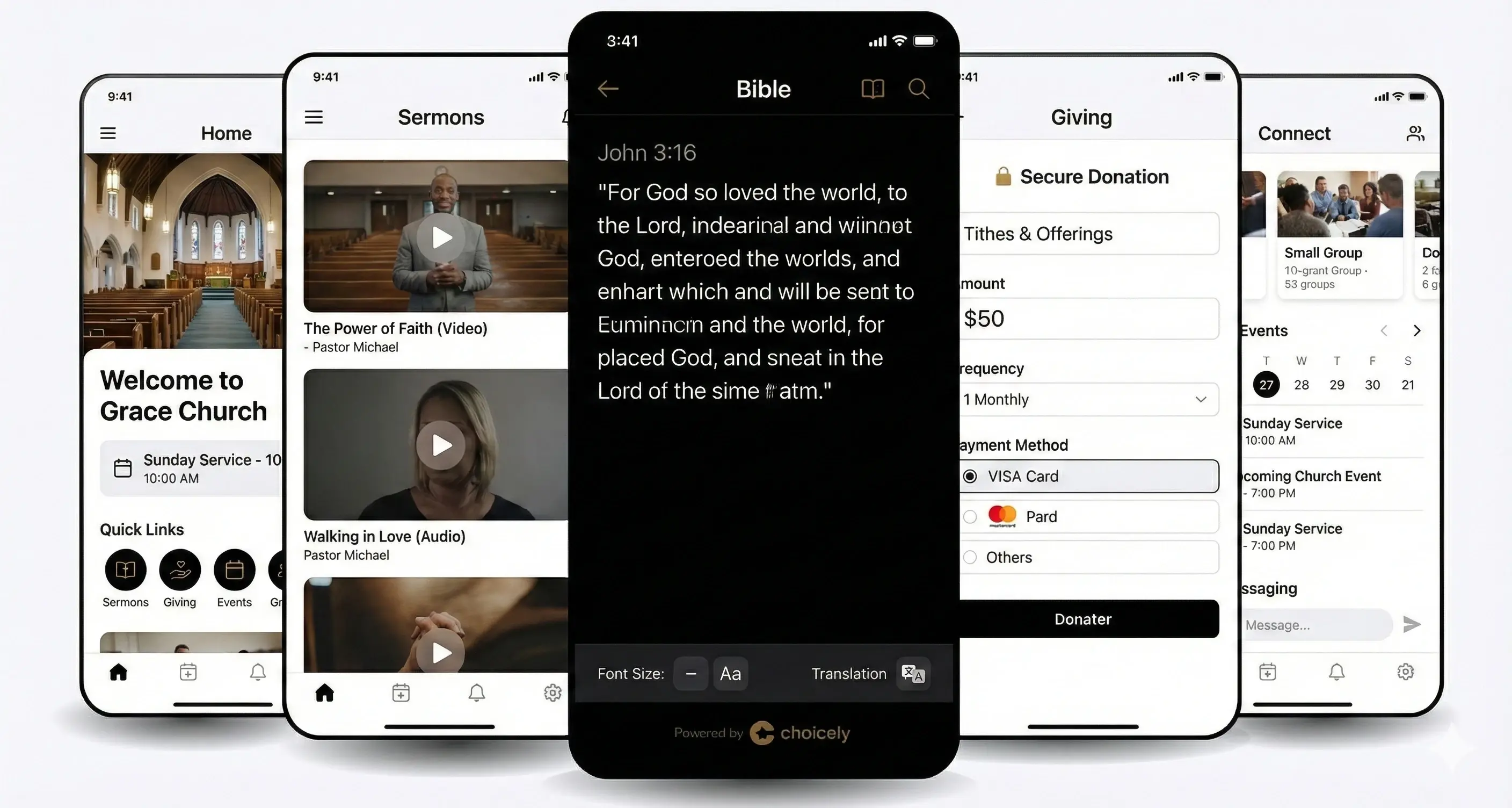
- Service times and locations. This week's services, with a map to each site and changes shown as soon as you make them.
- Sermons. Each Sunday's sermon as video, audio or text in one feed, so people who missed it can catch up.
- Events and groups. Youth evenings, choir practice, small groups and seasonal services.
- Notices for members. Prayer requests, volunteer rotas and news in a members' area behind a login.
- Giving. A link to the online giving page you already use, opening inside the app.
Pick the two or three items that matter most and put them first. For most churches that is service times and sermons. Everything else can be added later, so there is no need to plan the whole app up front.
Step 2: Gather your content
The build goes much faster when the material is ready. Collect it in one shared folder before you start:
- Sermon recordings. Video and audio files, or the links to where they already live, such as your YouTube channel.
- Photos. The building, services, groups and events. Your own photos make the app look like your church rather than a template.
- The service schedule. Times and addresses for every site, plus any seasonal services you already know about.
- Existing links. Your online giving page, event registration forms and any other booking pages you use today.
- Branding. Logo, colours and the short description you use on your website.
Also decide who will keep the app up to date. One person with a backup is usually enough; it is often the same person who updates the website or the weekly notices.
Step 3: Build the first version with an AI church app builder
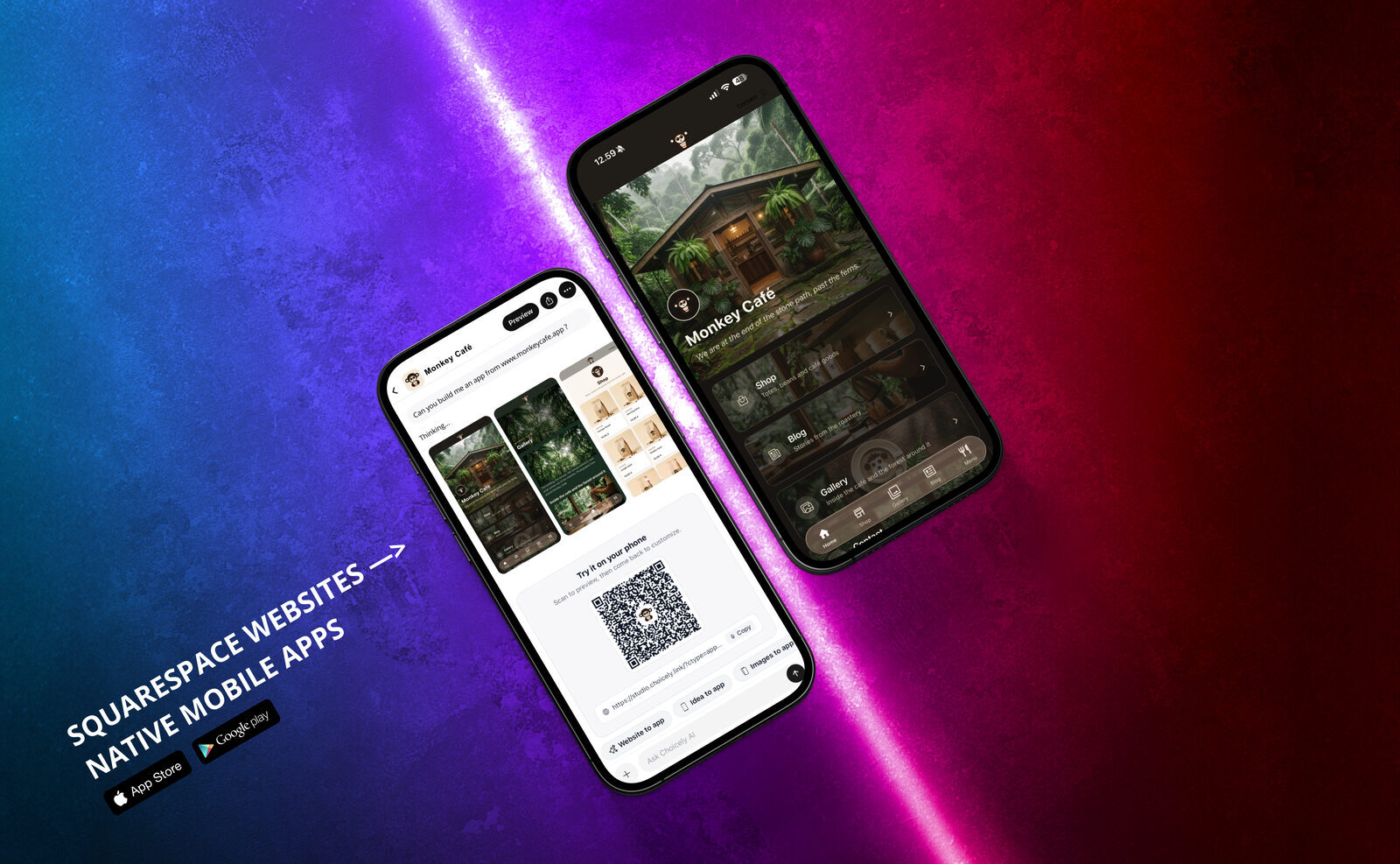
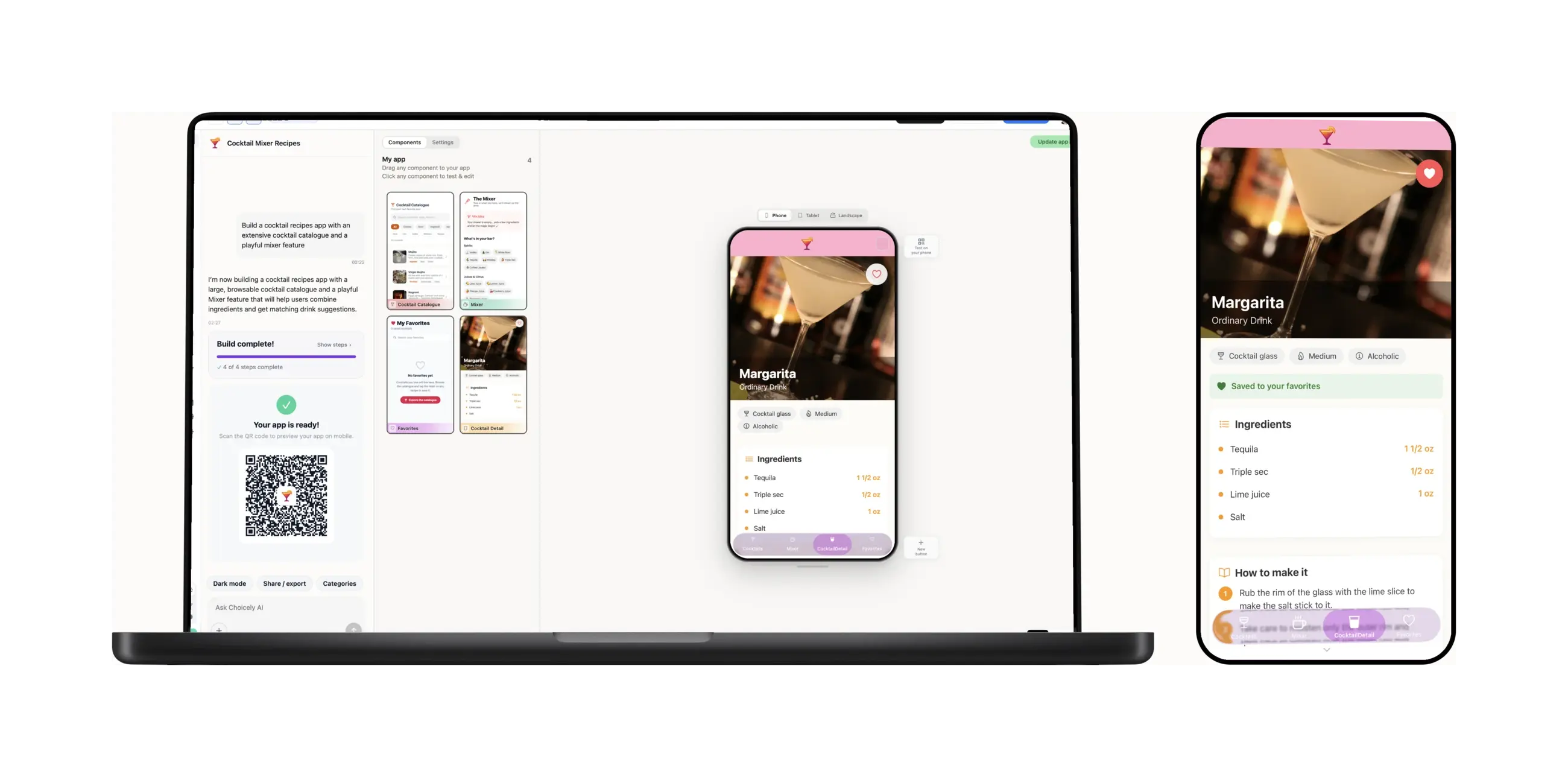
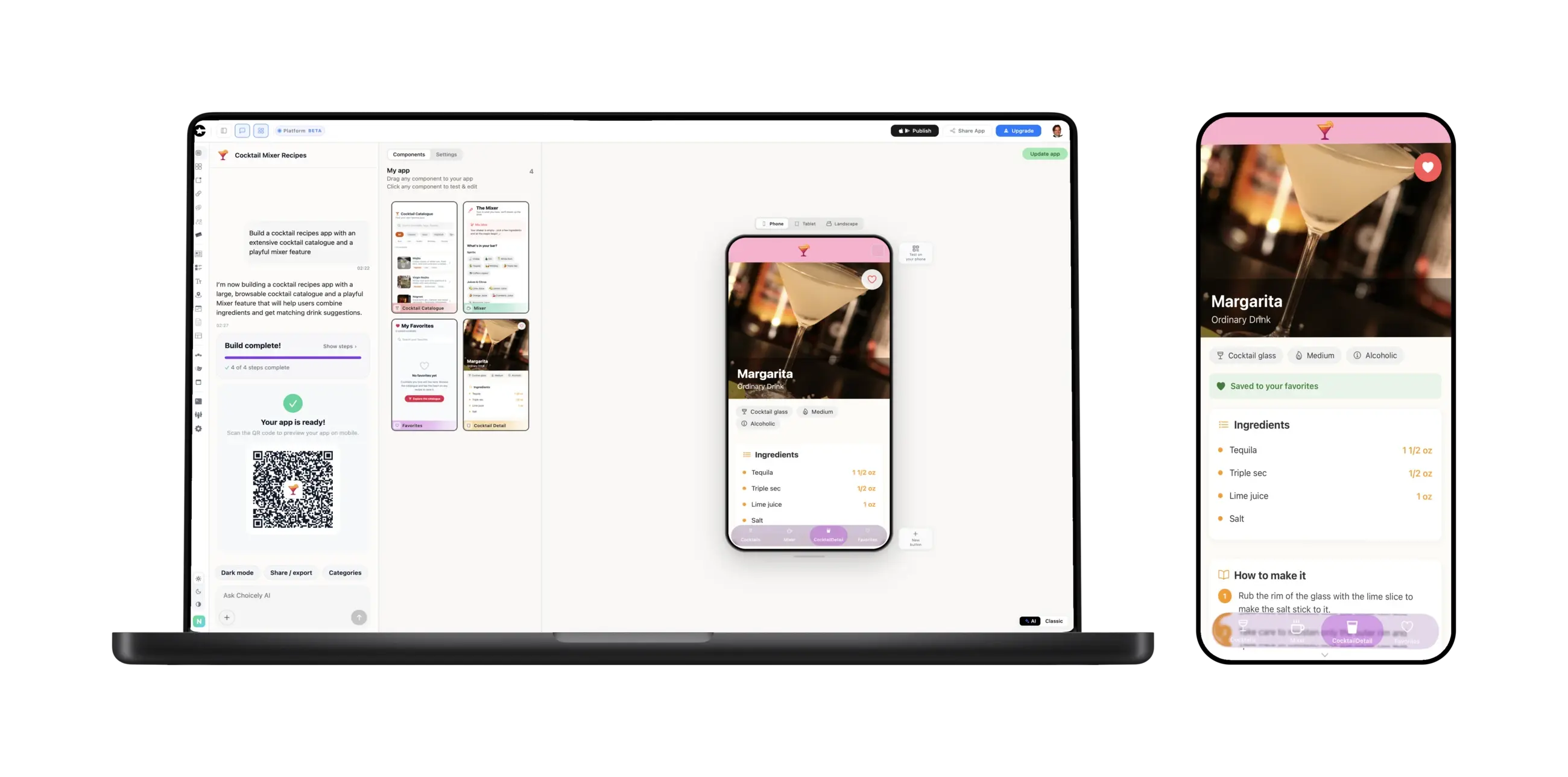
With an AI church app builder you do not start from an empty screen. In Choicely Studio, you describe your church in plain words: its name, how many sites it has, when services are held and what matters most to your members. The AI builds a working first version in about two minutes.
A useful description is specific. For example: "A parish church with two sites, Sunday services at 10:00 and 18:00, a weekly sermon on video and audio, a youth group on Fridays, and a link to our online giving page." The more concrete the description, the closer the first version will be to what you need.
Step 4: Shape it to fit your church
Next, make the app your own in the drag-and-drop editor. You can keep editing for as long as you need, and volunteers can update content without any coding.
Content and layout
- Put this week's service times at the top of the home screen.
- Add the sermon library with video and audio, so members can listen on the commute.
- Add quick links to giving, events, small groups and your YouTube channel.
- Apply your colours and imagery to every screen, in a light or a dark theme.
A members' area behind a login
Some content is only for the congregation: prayer requests, volunteer rotas, internal notices. Put these in a members' area behind a login rather than on the public screens. Note that this is a place to share information; it is not a membership database or a rota scheduling tool, so keep using the system you already have for those and link to it if needed.
Push notifications
Push notifications are how the app reaches people between Sundays. Use them for a schedule change, a new event, a prayer request or a service going live. Send them when there is something worth knowing, so members do not learn to ignore them.
Test the app on your own phone as you go, and ask two or three members to try it before you publish.
Step 5: Set up Apple and Google developer accounts for the church
To publish in the App Store and Google Play, the church needs its own developer accounts. Registering them as an organization, rather than as a private person, means the app is listed under the church's name and stays with the church if a volunteer moves on.
Both stores ask organizations for a D-U-N-S number, a free identifier that confirms the organization is a registered legal entity. Check whether the church already has one before applying. Getting the number and passing both stores' verification can take some time, so start this step early, ideally while you are still shaping the app.
Step 6: Publish with the Publish Assistant
When the app is ready, the Publish Assistant prepares the store listings and guides you through submitting the app to the App Store and Google Play under the church's own Apple and Google accounts. You stay the owner of the app and its listings.
Before submitting, check the basics: the app name, a short description, screenshots, and a privacy policy. Apple and Google then review the app before it goes live.
After launch, updates are simpler. Choicely apps update in real time, so a new sermon, changed service time or new event reaches members' phones straight away, without another app store review.
Step 7: Get members to install it
An app only helps if people have it on their phones. Plan the launch as you would any other church announcement:
- Announce it from the front on a Sunday, with a short demo on the screens.
- Print a QR code on the bulletin and show it on the screens before and after services, linking to the app in both stores.
- Mention it in your other channels: the email newsletter, website and social media.
- Use push notifications once people have installed it, so the app proves useful in the first weeks, for example when a new sermon is up.
Repeat the QR code for a few weeks; not everyone is there every Sunday.
What it costs
Choicely is free to build and test: 150 credits a month, plus 100 bonus credits when you sign up. Publishing to both stores starts at $25 a month on the Premium plan (see Choicely pricing).
On top of that come the store fees, which are paid to Apple and Google directly: $99 a year for the Apple Developer Program and a one-time $25 for Google Play. To compare a builder with a custom-developed app, try the mobile app cost calculator.
Ready to start? Create a church app with Choicely: describe your church and see the first version in minutes.
Frequently asked questions
How long does it take to create a church app?
The first version takes minutes: describe your church and the AI builds it in about two minutes. Shaping the content takes longer, depending on how much you add. Allow extra time for the Apple and Google developer accounts and the stores' review, so start those early.
Do we need a developer to create a church app?
No. You describe your church, the AI builds the first version, and your own team or volunteers edit sermons, events and notices in a visual editor without any coding.
Can members give or donate in the app?
Yes, through the online giving page you already use, which opens inside the app. Donations and payments stay with that service; the app does not handle them itself.
How do we keep the app up to date?
Edit the content in the editor whenever something changes. Updates reach members' phones straight away without a new app store review, and push notifications let you tell them about a new sermon or event.
Will the app work on both iPhone and Android?
Yes. You get native iOS and Android apps, published in the App Store and Google Play under your church's own developer accounts.