![Choicely App Logo.png]](https://www.choicely.com/hs-fs/hubfs/Choicely%20App%20Logo.png?width=40&height=40&name=Choicely%20App%20Logo.png)
To publish an app on the App Store you need an Apple Developer account. It costs $99 per year, and the sign-up takes a few minutes — but Apple's review of your enrollment can take anywhere from a day to about a week, so it's worth starting early. If you're enrolling as a company rather than an individual, you'll also need a D-U-N-S number (a free business identifier) and the authority to sign agreements for your organization. (Updated July 2026.)
In a hurry? Let Choicely handle it. If you're publishing your app with Choicely, the Publish Assistant guides you through setting up your Apple Developer account, prepares your App Store listing, pre-checks your app against Apple's review rules, and submits it for you. Start free at studio.choicely.com/sign-in
When you have an Apple Developer account, you can start publishing iOS apps on the App Store
It’s beneficial if a person, who’s a Founder or a Director, handles this process. Validating the person and the company is more straightforward, when the person is named in the company registration documents.
What changed in 2026
Not much — and that's worth knowing before you start. The Apple Developer Program still costs $99 per year, and organizations still need a D-U-N-S number to enroll. Both have been stable for years.
Two things are worth flagging. First, if your app will be available in the European Union, Apple requires trader status details — a verified address, phone number, and email shown on your App Store product page — so have those ready. Second, the wider trend: app stores keep tightening identity checks. Google is expanding developer verification across Android in 2026, and organization accounts with proper business records are increasingly the smooth path on both stores. If you're setting up an account now, registering properly as an organization is the future-proof choice.
1. Get your D-U-N-S number
Now let’s start off with the D-U-N-S number! Google “International DUNS number” and select “Choose Your Country or Region”. Select your region and look for your D-U-N-S number on the site. Click “Email” to get the D-U-N-S number emailed to you.
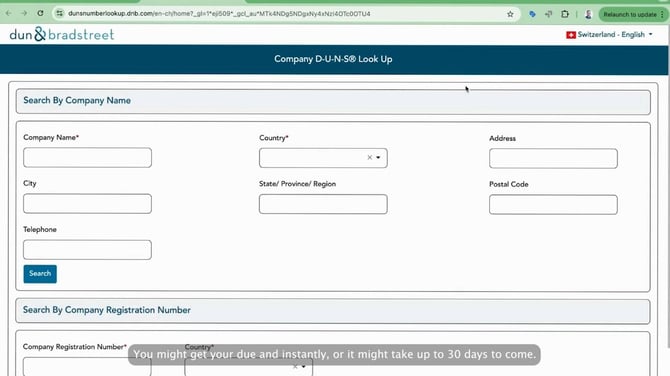
You might get your D-U-N-S instantly, or it might take up to 30 days to come – this varies by region.
When you have received your D-U-N-S number and have all the necessary information at hand, it’s time to start the registration process!
Waiting on your D-U-N-S number? Build in the meantime
You don't have to sit idle for 30 days. Choicely's Publish Assistant lets you build your app now and pre-checks it against Apple's review guidelines while the paperwork comes through — then walks the actual submission into the App Store step by step once your developer account is live. The free plan includes 300 monthly credits and doesn't ask for a card.
2. Log into your Apple account – or create one
Go to developer.apple.com
Click “Account”
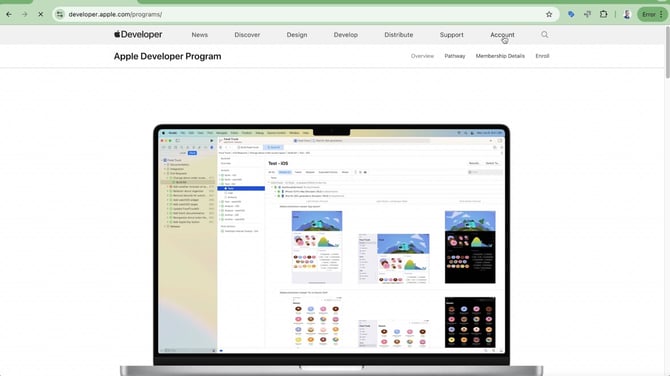
If you have an Apple account – an Apple ID – enter the email address or phone number associated with the account. When you sign in, you’ll need to use a password or a passkey – read a QR code on the screen using your Apple device.
If you don’t have one, click “Create yours now” below the sign in box
You’ll be asked to fill in your basic details like name, country, date of birth, email and password. Finally you’ll verify your contact details with a text message or a phone call.
3. Review the Apple Developer Agreement
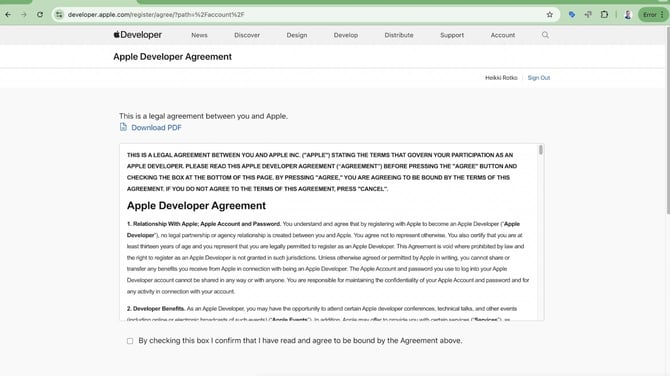
Next it’s time to review and approve the Apple Developer Agreement. Check the box to confirm the Agreement. You can also opt in to receive further communications and update for Apple developers. Click “Submit”
4. Enroll for the Apple Developer Program
Once you have completed those steps, click “Enroll today” under “Join the Apple Developer Program”.
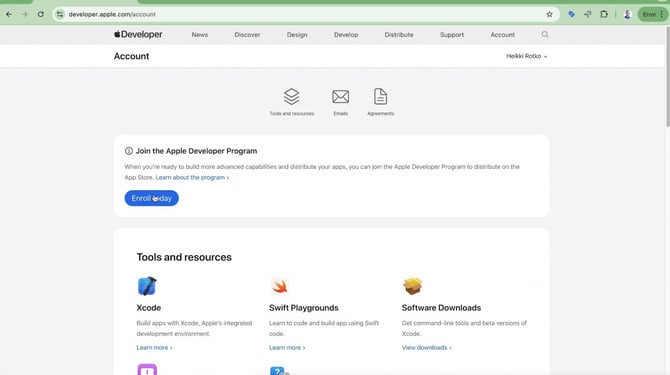
Next, click “continue enrollment on the web”.
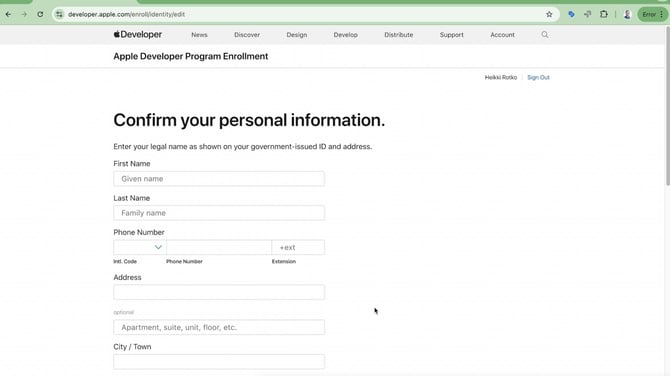
Fill in your personal information here.
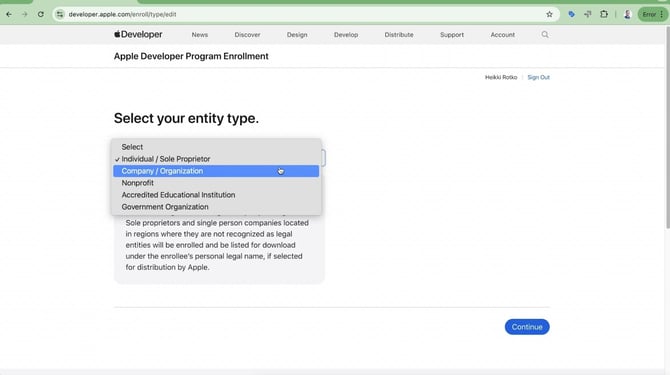
Select one of the organizations as your entity – not an individual. Individual accounts can’t invite collaborators to – for example – take care of app publishing.
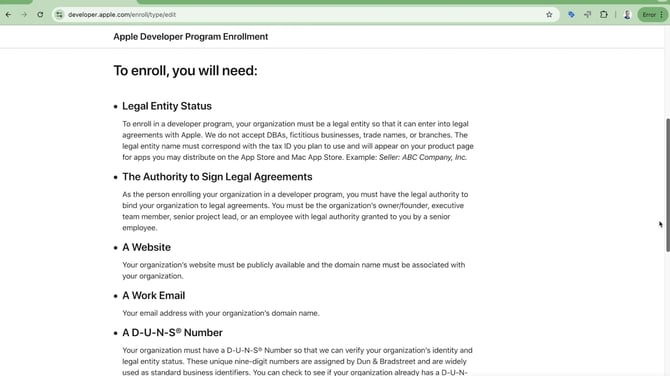
At this point Apple informs you on what you need to complete the enrollment process.
- Your organization needs to be a legal entity
- You need to have the authority to sign legal agreements
- You need a website and a work email with your organization’s domain name
- A D-U-N-S number – which we took care of earlier
Click “Continue”
5. Fill in company information
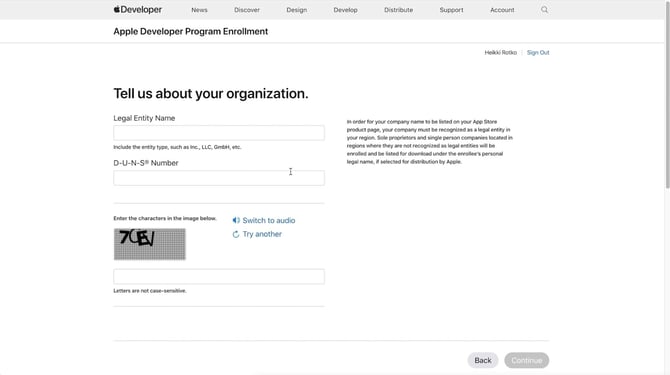
Now fill out the legal entity name of your organization and the D-U-N-S number. Click “Continue”, then give the website address and the phone number of your organization. Finally, confirm your authority to sign legal documents, and enter your work email. Verify your email address by clicking “Send code” and then go to your email to copypaste the code here.
If you have been given authority to sign legal documents on behalf of your organization, provide a reference who can verify your authority. Click “Continue”
Next up, you’ll be asked to verify and confirm the information you’ve filled out. Click “Submit” if it’s correct, and click “back” if you need to fix something.
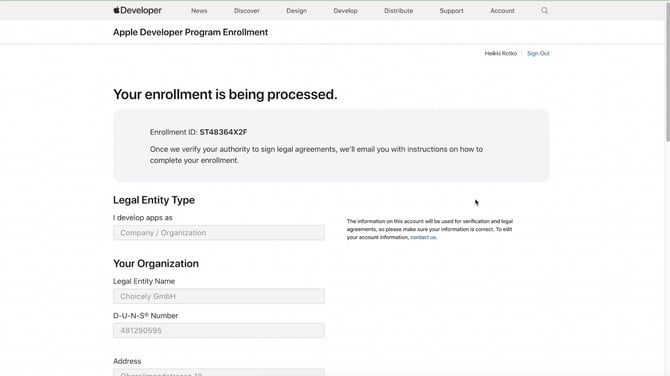
Now your enrollment is being processed. You’ll receive email from Apple on how to complete the enrollment process.
Click to review the Apple license agreement. Check the box when you’re ready and click “Continue”.
6. Complete your purchase
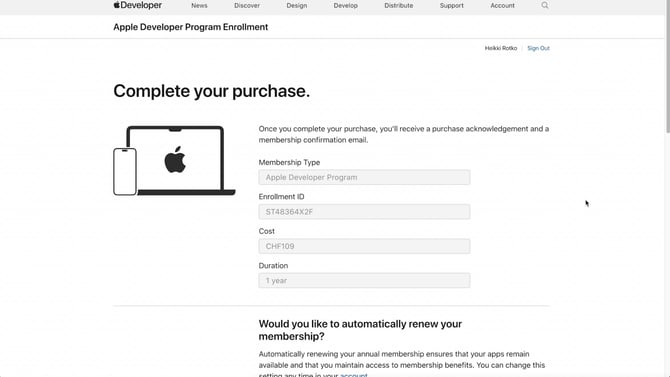
It’s time to purchase your Apple Developer Program membership for the first year. Currently the price for the membership is $99/year. You can also opt in to automatically renew your membership.
You need to log in again with your password or a pass key to purchase.
Choose the payment method you’d like to use, and fill in the details.
Finally, confirm your purchase.
7. Ready
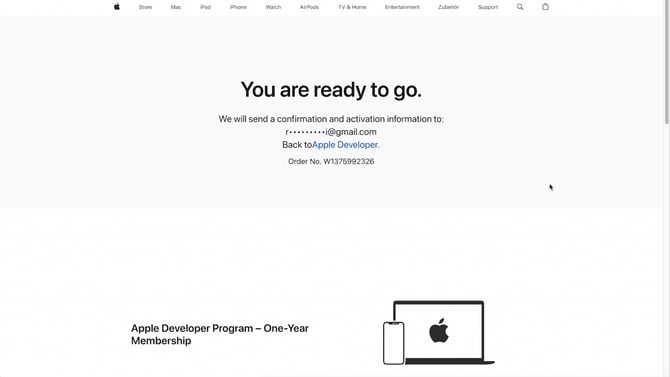
Now you’re ready to publish an iOS app!
Account ready? The submission is the harder part
Publish Assistant pre-checks your app against App Store rules, generates your store listing, and walks you through the submission itself — so your first review has the best odds of passing.
Get started free →Next up in publishing your app:
- Have you already created an Google Play Developer account?
- Have you created promotional pictures for your app store listings?
Frequently asked questions
How much does an Apple developer account cost?
Apple Developer Program membership costs $99 per year (USD). There is no free tier for publishing to the App Store — the paid membership is required to submit apps. Apple waives the fee for eligible nonprofits, accredited educational institutions, and government entities in some countries, so check whether your organization qualifies before paying.
Should I register as an individual or an organization?
Register as an organization if you're publishing for a company. Organization accounts publish under your legal business name, let you invite team members with their own roles, and keep the account tied to the company rather than one person. Individual accounts can't invite collaborators, and your apps appear under your personal name in the App Store.
What is a D-U-N-S number and why does Apple need it?
A D-U-N-S number is a nine-digit business identifier issued by Dun & Bradstreet. Apple uses it to verify that your organization is a real legal entity. It's free to obtain for Apple Developer enrollment. Many companies already have one — check first — and if not, it can take up to 30 days to arrive.
How long does it take to create an Apple developer account?
Plan for a few days to a few weeks in total. The D-U-N-S number can take up to 30 days if your organization doesn't already have one. Apple's enrollment review usually takes a day to a week, and Apple may phone your contact person to confirm signing authority before approving the account.
Can I create an Apple developer account without a Mac?
Yes. Enrollment happens entirely in the browser at developer.apple.com, so any computer works. You only need a Mac later, when building and uploading the app itself with Apple's tools — and if you publish through a platform like Choicely, the build and upload are handled for you, so no Mac is ever required.
What do I need before I start?
Have four things ready: an Apple Account with two-factor authentication turned on, your organization's legal entity name exactly as registered, a D-U-N-S number, and confirmation that you — or someone you can name — has the legal authority to sign agreements for the company. A company website and phone number help verification go faster.
What happens if I don't renew the membership?
If the $99 membership lapses, your apps are removed from the App Store until you renew — existing users keep the app, but new downloads stop. Turn on auto-renewal during checkout if you want to avoid this. Once you renew, your apps are restored without needing to be re-submitted.
Now you’re ready to publish an iOS app!